This article describes how to use HTML to incorporate Silverlight into a web page. To achieve this, follow these steps.

- Make a Silverlight program.
- Include a button and a TextBox in the XAML file.
- In the.cs file, write the logic for the button's click event.
- To access the Silverlight-generated.xap file, create an HTML page and include some tags.
Step 1: Make a new Silverlight application project called "SilverlightExample".
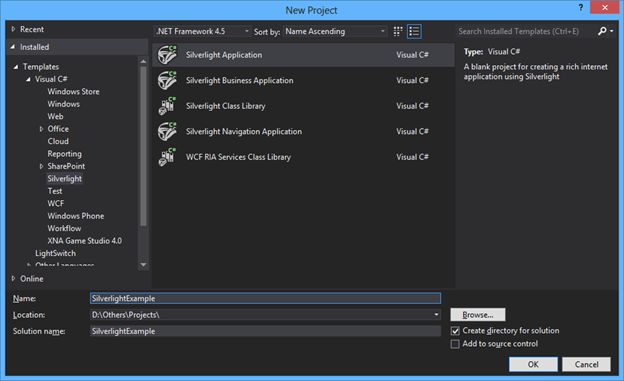
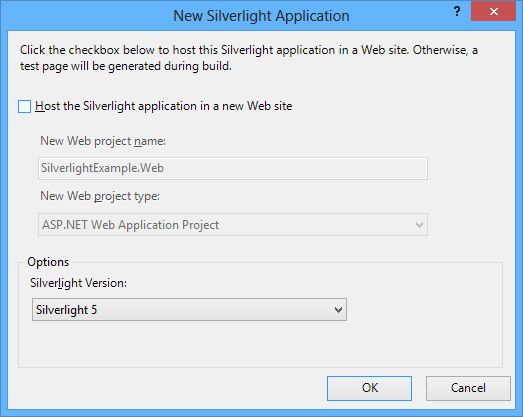
Uncheck the checkbox to not create a web project for hosting the Silverlight.
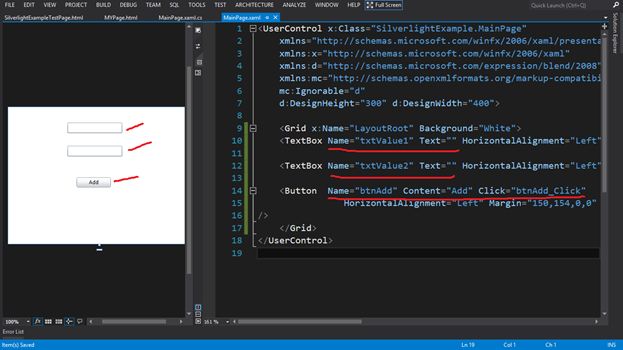
Step 2: In the default page named "MainPage.xaml", add 2 Textboxes for getting the input named "txtvalue1" and "txtvalue2" with blank text by default ( text=””) and add a button named "btnAdd" with content "Add". Then create onClick event of the button.
<TextBox Name="txtValue1" Text="" HorizontalAlignment="Left" Height="23" Margin="130,34,0,0" TextWrapping="Wrap" VerticalAlignment="Top" Width="120"/>
<TextBox Name="txtValue2" Text="" HorizontalAlignment="Left" Height="23" Margin="130,85,0,0" TextWrapping="Wrap" VerticalAlignment="Top" Width="120"/>
<Button Name="btnAdd" Content="Add" Click="btnAdd_Click" HorizontalAlignment="Left" Margin="150,154,0,0" VerticalAlignment="Top" Width="75" />
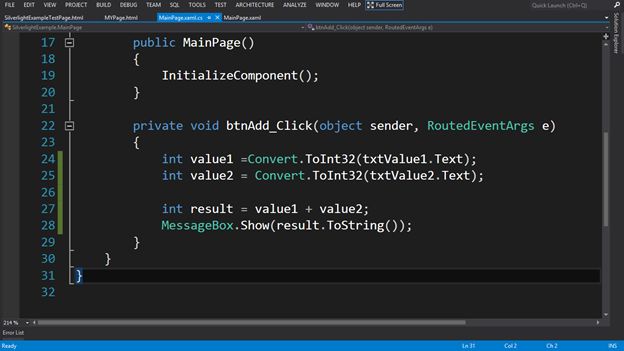
Step 3: Write the code in the section of the onclick event of the button in "MainPage.xaml.cs" that will add the values of the textboxes and show the addition via alert message.
int value1 = Convert.ToInt32(txtValue1.Text);
int value2 = Convert.ToInt32(txtValue2.Text);
int result = value1 + value2;
MessageBox.Show(result.ToString());
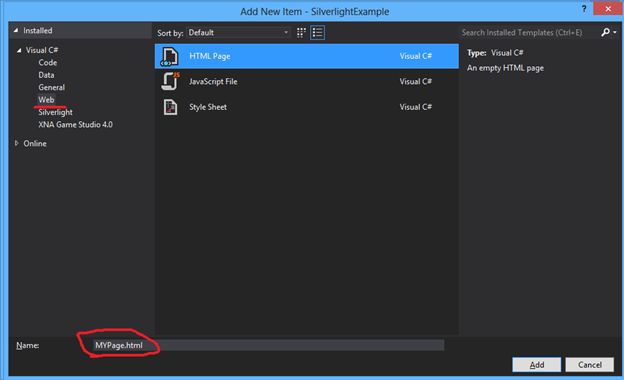
Step 4: Now add a HTML Page named "MYPage.html" into the application.
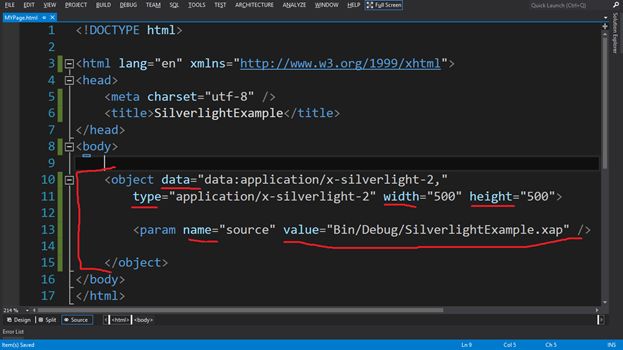
Add an <object> tag to the HTML page with data, type, width and height attributes and <param> element with name and value attributes.
<object data="data:application/x-silverlight-2," type="application/x-silverlight-2"
width="500" height="500">
<param name="source" value="Bin/Debug/SilverlightExample.xap" />
</object>
data attribute and its value are recommended to avoid performance issues on some browsers.
type attribute and the specific value shown are also required. This value uses the Silverlight MIME type to identify the plug-in and the required version.
width and height attributes are required for cross-browser compatibility.
the <param> element named source is required and indicates the location and name of your application file.
Note: .xap exists in the bin/Debug folder, that's why value="Bin/Debug/SilverlightExample.xap".
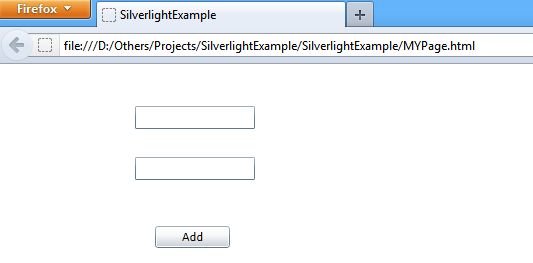
Open the HTML file using a browser.
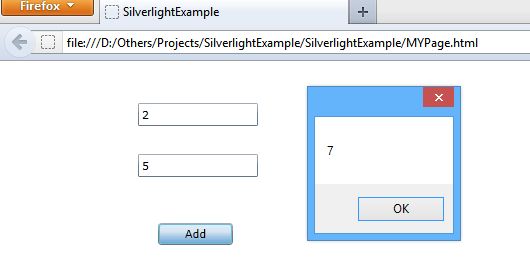
Enter the 2 integer values into the textboxes respectively and press the button to see the ouput.
You can also create the .html file anywhere in your system and put the Silverlight generated .xap file with in the same folder, but in this case you need to write the value="SilverlightExample.xap" because now the .xap and .html files are in the same folder or location.